How to clear cache on Android
By Ultra Team
Published March 9, 2026
Android devices are built for speed and multitasking, but even the most powerful hardware can eventually feel bogged down. If you notice your phone running slow, apps crashing unexpectedly or a “storage almost full” notification that won’t go away, the culprit is likely temporary files. These files, known as cache, build up over time and can hinder your mobile experience. Learning how to clear cache is a quick, safe and effective performance fix that requires absolutely no technical expertise. And we’ll prove it with this guide, which covers everything you need to know about managing your Android cache to keep your device fast and efficient.
What is cache on Android?
The cache on your Android device is a collection of temporary data stored by your apps and web browser. Its primary purpose is to help apps load faster. For example, when you open a social media app, it saves images, scripts and browsing data locally so it doesn’t have to redownload them every time you scroll.
While this system is designed for efficiency, it has limits. These temporary files build up over months of use, consuming gigabytes of precious storage. Plus, cached data can become corrupted after app updates or system changes, leading to glitches. Think of a cache like a desk covered in reference notes. It’s helpful to have them nearby, but if the pile gets too high, you can no longer find the workspace you actually need to get the job done.
Why clearing cache matters
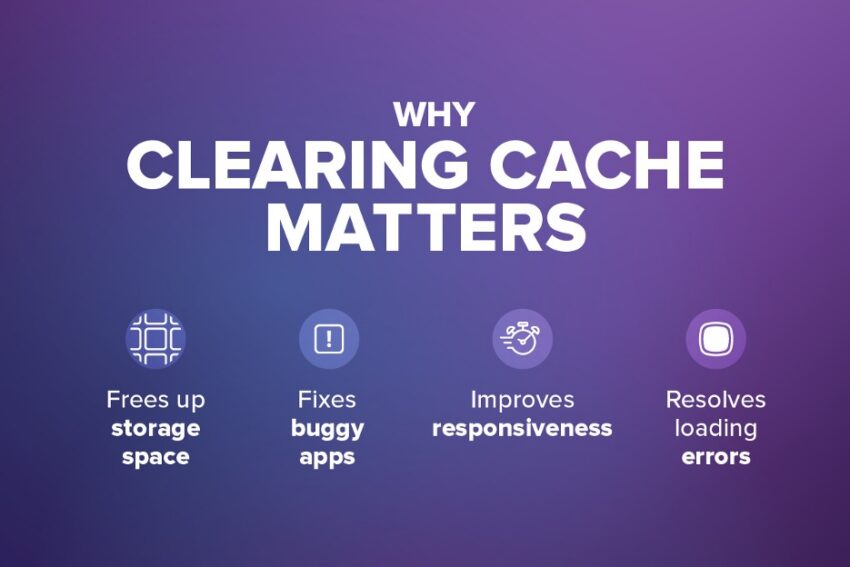
Regularly clearing your cache is a foundational part of Android maintenance. It provides several immediate benefits:
- Frees up storage space: High-resolution images and video thumbnails in your cache can take up significant room. Clearing them can provide the extra space needed for new photos or app updates.
- Fixes buggy apps: If an app is freezing or behaving erratically, clearing the cache often resolves the issue by removing corrupted temporary files.
- Improves responsiveness: A bloated cache can slow down the system’s ability to retrieve data. Refreshing the cache helps the OS focus on active tasks.
- Resolves loading errors: If a website or app is displaying outdated information or failing to load assets, clearing the cache forces it to fetch the latest version.
What happens when you clear cache?
A common concern for users is the fear of losing important information. It’s important to understand the difference between “Clear Cache” and “Clear Data.”
When you clear the cache, you are only removing temporary files. This process does not delete your personal data, such as photos, contacts or messages. In most cases, it will not even log you out of your accounts. The only immediate change you might notice is that the first time you open an app after clearing its cache, it may take a few extra seconds to load as it recreates the necessary temporary files. This is normal and a sign that the app is building a fresh, clean set of data.

How to clear cache for a specific app
If one particular app is causing trouble, you can target it directly without affecting the rest of your phone. Just follow these steps:
- Open Settings on your Android device.
- Tap Apps or Apps & notifications (the exact wording may vary).
- Select the specific app that is running slowly or crashing.
- Tap Storage or Storage & cache.
- Tap Clear Cache.
How to clear cache for a specific app
If one particular app is causing trouble, you can target it directly without affecting the rest of your phone. Just follow these steps:
- Open Settings on your Android device.
- Tap Apps or Apps & notifications (the exact wording may vary).
- Select the specific app that is running slowly or crashing.
- Tap Storage or Storage & cache.
- Tap Clear Cache.
How to clear cache for a specific app
If one particular app is causing trouble, you can target it directly without affecting the rest of your phone. Just follow these steps:
- Open Settings on your Android device.
- Tap Apps or Apps & notifications (the exact wording may vary).
- Select the specific app that is running slowly or crashing.
- Tap Storage or Storage & cache.
- Tap Clear Cache.
Note that “Clear Storage” or “Clear Data” is a different option that will reset the app to its original state, deleting your settings and logins. Stick to Clear Cache for routine maintenance. You can repeat this process for any app you use frequently, such as Instagram, TikTok, YouTube, or any other app you put time into.
How to clear chrome cache on Android
Since browsing generates a massive amount of temporary data, clearing your browser cache is often the most effective way to reclaim storage.
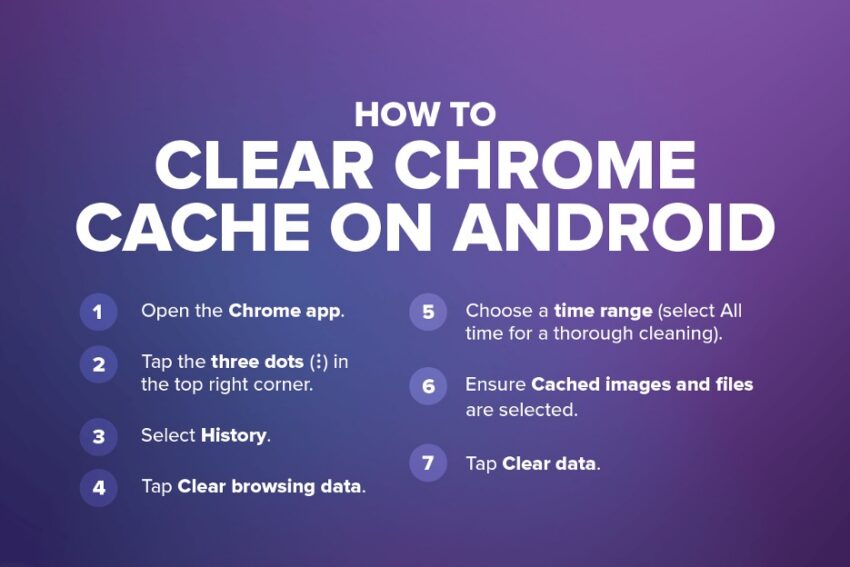
- Open the Chrome app.
- Tap the three dots (⋮) in the top right corner.
- Select History.
- Tap Clear browsing data.
- Choose a time range (select All time for a thorough cleaning).
- Ensure Cached images and files are selected. You can uncheck “Browsing history” and “Cookies” if you wish to keep those.
- Tap Clear data.

How often should you clear cache?
There is no need to clear your cache daily. Android is generally efficient at managing these files on its own. However, you should consider a manual clear in the following scenarios:
- Low storage: When you are struggling to find room for a new download.
- Performance lag: If the interface feels sluggish or apps take too long to respond.
- After major updates: System updates can sometimes make old cached data obsolete or problematic.
- App glitches: When an app refuses to open or closes unexpectedly.
Think of it as a seasonal deep clean rather than a daily chore.
Does clearing cache make your phone faster?
Clearing the cache can provide a noticeable boost in responsiveness and fix minor glitches, but it is important to manage expectations. It frees up storage and removes “digital junk,” which helps the software run more smoothly. However, it cannot overcome the limitations of aging hardware. If your phone is several years old, clearing the cache should be combined with other strategies like keeping your software updated and removing unused apps. It is a powerful first step in troubleshooting, but for the best mobile experience, it should be paired with a high-performance network and modern hardware.
Keep your Android running smoothly
Clearing your cache is a safe, simple and effective habit that keeps your Android phone running its best. It acts as a quick performance boost and a reliable fix for common app glitches. By taking a few minutes to clear out temporary files, you ensure your device remains a productive tool rather than a source of frustration.
And when you’re ready to pair that faster Android with quality wireless service, check out what Ultra Mobile has to offer. You can bring your own phone to Ultra and enjoy unlimited talk & text on America’s largest 5G network.