How to change font size on iPhone
By Ultra Team
Published June 9, 2026
What makes the biggest impact on your phone’s usability? You might say battery life or mobile data, but the answer might be right in front of you. Font size has a bigger impact than most people realize, especially for users with low vision. And iOS has a collection of built-in tools that let you adjust font size across your entire phone, fine-tune it within specific apps or customize Accessibility Settings for even more control — no third-party apps required. This guide will show you how to tailor your iPhone to your needs.
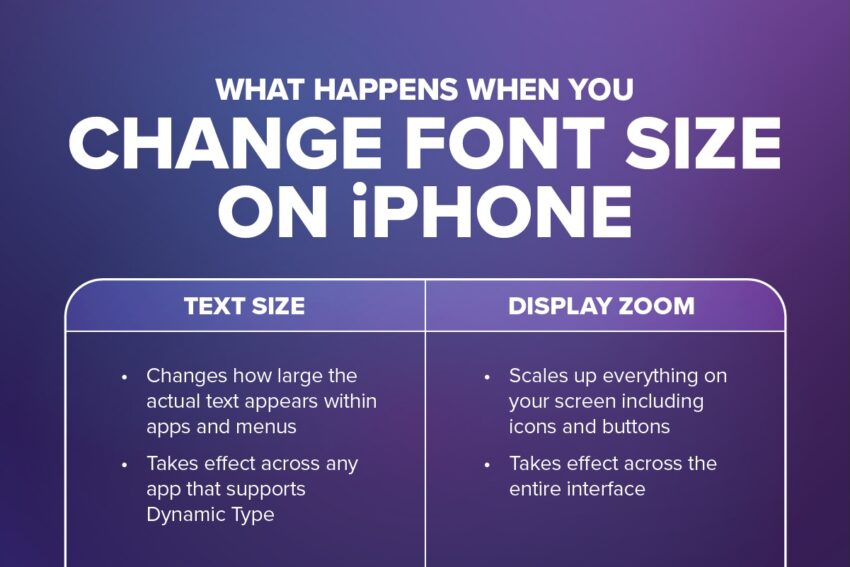
What happens when you change the font size on iPhone?
When you adjust font size on your iPhone, you’re working with one of two settings: Text Size or Display Zoom.
| Text Size | Display Zoom |
| Changes how large the actual text appears within apps and menus Takes effect across any app that supports Dynamic Type | Scales up everything on your screen, including icons and buttons Takes effect across the entire interface |
How to change font size on iPhone
Adjusting Text Size is easy:
- Open Settings
- Tap Display & Brightness
- Select Text Size
- Drag the slider at the bottom of the screen: slide left to decrease the font size, slide right to increase it
- Preview your changes in real time using the sample text displayed above the slider, so you can find the size that feels just right before exiting
Once the font is adequate, your adjustments will be applied automatically across all apps that support Dynamic Type.
How to make iPhone text even larger using accessibility settings
Need an even larger font? iOS has an extra layer of customization called Accessibility Settings. Here’s how to enable Larger Accessibility Size:
- Open Settings
- Tap Accessibility
- Select Display & Text Size
- Tap Larger Text to open the expanded size settings
- Toggle on Larger Accessibility Sizes to unlock larger fonts
Once enabled, drag the slider to your preferred size. Your changes will apply automatically across all Dynamic Type-supported apps.
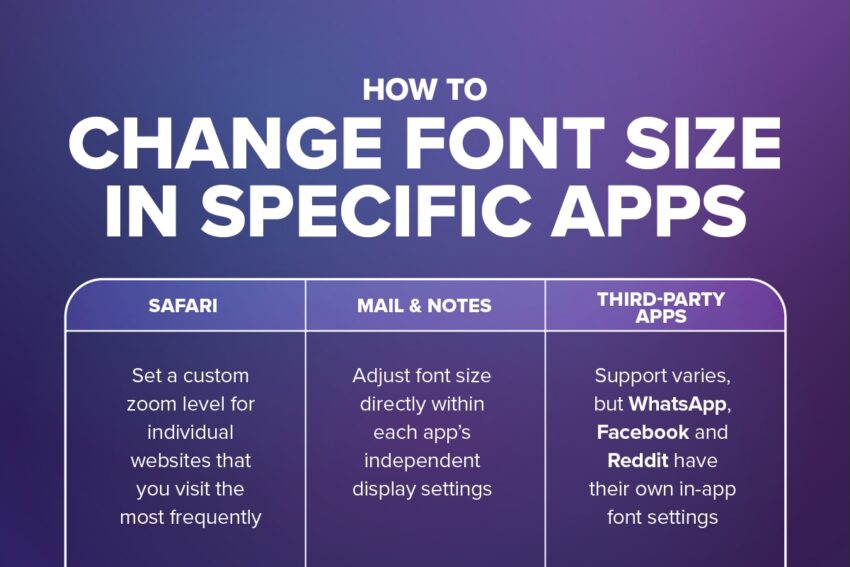
How to change font size in specific apps
iOS lets you adjust font size on an app-by-app basis. Several apps even have their own built-in settings:
You can also use the Control Center to fine-tune the font size for whatever app you’re currently using:
- Open the app you want to adjust text size for
- Swipe down from the top right corner of your screen to open the Control Center
- Tap the “AA” icon
- At the bottom of the screen, select the option on the left to apply the change to only the app you currently have open
- Drag the slider up or down to increase or decrease the font size
How to add text size to control center
If the Text Size control isn’t already in your Control Center, it only takes a few steps to add it:
- Open Settings
- Tap Control Center
- Scroll down to More Controls
- Tap the green plus icon next to the “AA” icon to add it to the Control Center
Once added, the Text Size control will be available every time you swipe down from the top right corner of your screen.

“TIP”
If you don't see a More Controls option, open the Control Center and tap the plus icon in the top left corner and select Add a Control.
How to decrease font size on iPhone
If your font size feels too large, decreasing it is just as easy as increasing it:
How to reduce font size using standard Settings
- Open Settings
- Tap Display & Brightness
- Select Text Size
- Drag the slider to the left to reduce the font to your preferred size
How to reduce font size using Accessibility Settings
You can scale back the font from Accessibility Settings too:
- Open Settings
- Tap Accessibility
- Select Display & Text Size
- Tap Larger Text
- Drag the slider back down to a smaller option that feels comfortable
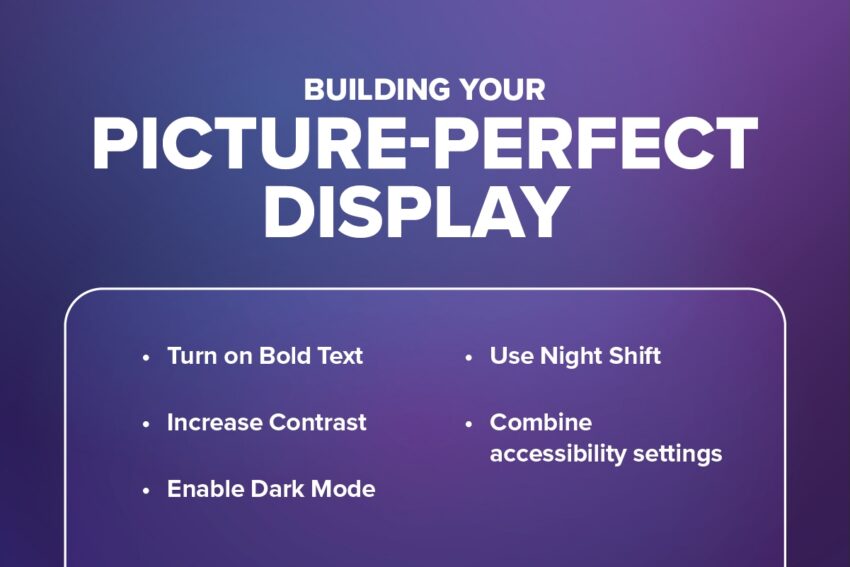
Building Your Picture-Perfect Display
Now that your font size is dialed in, iOS has additional settings that can improve your experience even further:
- Turn on Bold Text to makes text easier to read at a glance
- Increase Contrast to sharpen the distinction between text and background colors
- Enable Dark Mode to reduce glare and make text pop in low-light
- Use Night Shift to shift your screen to warmer tones for night time use
- Combine accessibility settings to mix and match until your display feels just right
Your iPhone is built to work for everyone. A few minutes spent in your settings can make everyday activities noticeably more comfortable — like exploring Ultra Mobile’s website for great deals on wireless plans.