How to organize apps on iPhone
By Ultra Team
Published January 21, 2026

We have all been there before. You unlock your phone to send a quick text or check the weather, only to find yourself scrolling through five different pages of random icons. It starts with just a few essential tools, but soon you have three different food delivery apps, four streaming services, and a folder of games you haven’t touched in months.
When your iPhone home screen becomes a digital junk drawer, it does more than just look messy. It actually makes using your phone more difficult and time consuming. Common frustrations like not being able to find a specific app or having to swipe through endless pages can make even simple tasks feel like a chore.
The good news is that Apple provides several built-in ways to stay organized without needing any technical expertise or third-party downloads. Whether you want a strictly minimal look or just a way to group your work tools together, these simple solutions will help you take back control of your screen.
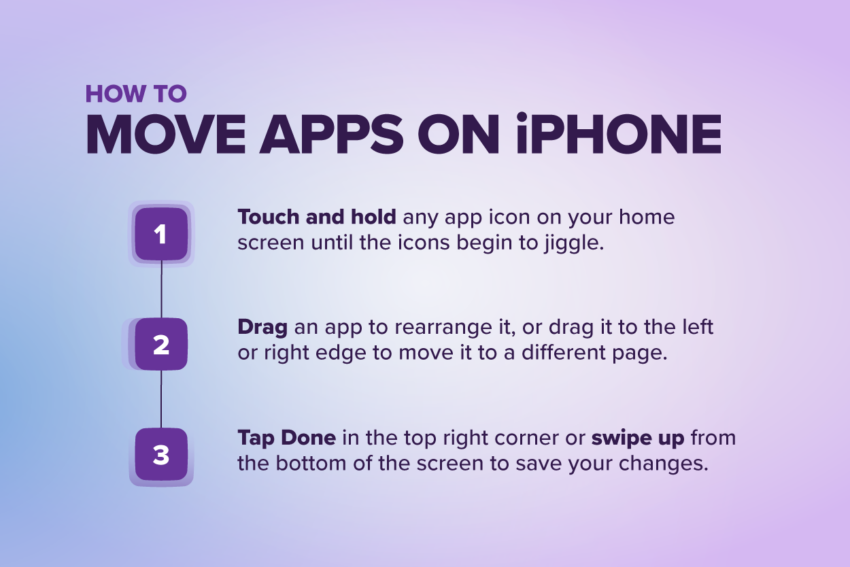
How to Move Apps on iPhone
Before you can start grouping things together, you need to know the basics of moving apps around. Doing so is the first step toward a personalized layout that works for your daily routine.
- Touch and hold any app icon on your home screen until the icons begin to jiggle. This puts your phone into edit mode.
- Drag an app to rearrange it on the same screen, or drag it to the left or right edge to move it to a different page.
- Use this to group similar apps on the same page, like social apps on one page and productivity tools on another.
- While in edit mode, review your dock at the bottom of the screen. Keep up to four apps you use every day, and swap out anything you rarely open.
- When you’re happy with your layout, tap Done in the top right corner or swipe up from the bottom of the screen to save your changes.
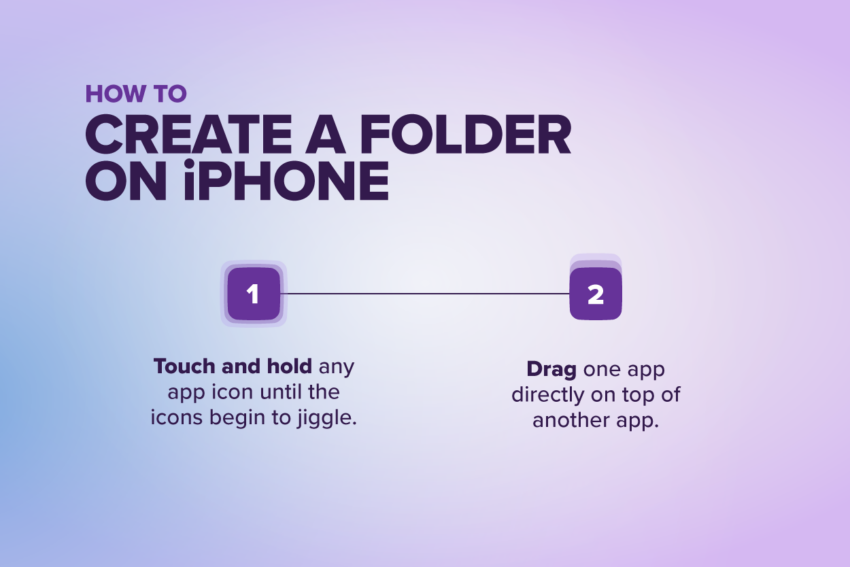
How to Create a Folder On iPhone
Folders are one of the easiest ways to reduce home screen clutter. Instead of dozens of individual icons, you can group apps into a single tile. This works especially well for categories like Social, Travel, or Finance.
- Touch and hold any app icon until the icons begin to jiggle. This puts your phone into edit mode.
- Drag one app directly on top of another app. Your iPhone will automatically create a folder containing both apps.
- Tap the folder name at the top to rename it. Apple suggests a name based on the apps inside, but you can change it to something more personal, like “Daily Essentials” or “Work Tools.”
- To add more apps, drag any additional icons into the folder.
- To remove an app from a folder, open the folder and drag the icon back onto the home screen.
Using folders helps you see more of your wallpaper and keeps your phone from feeling overwhelming. Whether you organize by app type, frequency of use, or even color, folders make it easier to keep everything in its place. When you’re finished, tap Done to save your changes.
How to Use the App Library
If you want to keep your home screen very minimal, you should get familiar with the App Library. This feature acts as a master catalog for every single app installed on your device.
To find the App Library, swipe left past your very last home screen. Here, you will see that your iPhone has already done the hard work for you. Apps are automatically grouped into smart categories like Creativity, Utilities, and Recently Added.
The App Library is the best place to find apps you don’t use every day. Instead of hunting through folders, you can tap the search bar at the top of the App Library screen. This brings up an alphabetical list of everything on your phone, making it incredibly fast to find exactly what you need.
The best part about the App Library is that it allows you to remove apps from your home screen without actually deleting them. This is ideal for those “just in case” apps that you only need once a month. By keeping them in the library but off your main screen, you keep your digital space focused and clean.
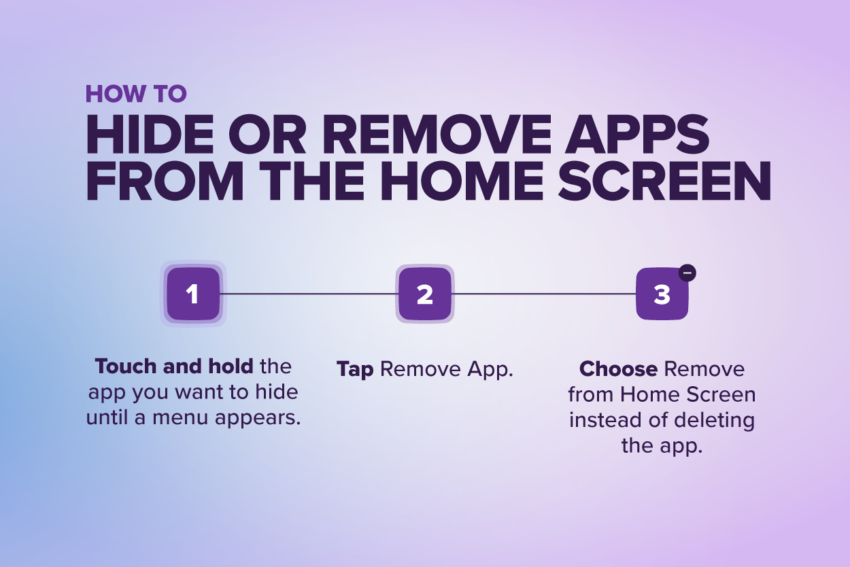
How to Hide or Remove Apps from the Home Screen
Sometimes, the easiest way to stay organized is to hide the apps you don’t need to see every day. Apple lets you remove apps from your home screen without deleting them from your phone.
- Touch and hold the app you want to hide until a menu appears
- Tap Remove App
- Choose Remove from Home Screen instead of deleting the app
The app will stay on your phone and remain searchable in the App Library, but it won’t take up space on your main screens. This is a simple way to keep your home screen focused on the apps you use most. If you ever want it back, just find the app in the App Library and drag it onto your home screen again.
Organization Tips (Quick Wins)
Beyond moving icons around, a few simple habits can help keep your iPhone organized and easy to use.
- Arrange apps by how often you use them. Keep apps you open every day on your first page, and move less-used apps to later pages or the App Library.
- Use widgets to reduce clutter. Widgets let you see things like weather or your calendar at a glance, so you don’t need separate app icons for everything.
- Do a quick app clean-up regularly. If you haven’t opened an app in a few months, consider removing it from your home screen or moving it to the App Library.
These small changes are easy to maintain and go a long way toward keeping your home screen clean and frustration-free.
Stay Organized For You
- A cleaner home screen saves time and reduces daily frustration
- App organization is personal, and there’s no single “right” way to set things up
- Start small by trying one or two methods that fit how you use your phone
- Built-in iPhone tools make it easy to organize and just as easy to change things later
- Small changes can make a big difference in how smoothly your phone works every day
Just like organizing your apps, simplifying how your iPhone is set up, such as using a digital SIM instead of a physical one, can help everything run more smoothly.