How to take professional photos on Android
By Ultra Team
Published November 13, 2025
It seems that smartphone cameras are so good these days that they rival entry-level DSLR cameras. This is especially true with Android devices. And while the hardware in these devices is impressive, the real secret to taking professional-looking photos lies in understanding the camera tools and mastering your technique. So, how can you do this yourself? Simply read on, and we’ll show you five tips that will instantly improve your photos.
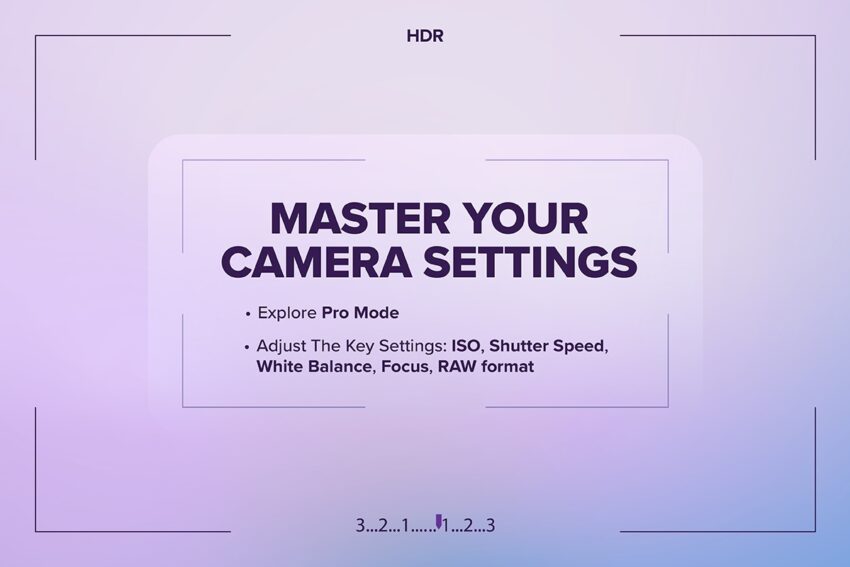
Tip #1: Master Your Camera Settings
If you know how to adjust your camera settings based on the type of photo you want to take and the environment you’re in, you’ll be well on your way to taking better pictures.
Explore Pro Mode:
Open your Camera app and look for “Pro” or “Manual” mode. On most Android phones (Samsung, Google Pixel, OnePlus, etc.), you can swipe through modes at the bottom or tap “More” to find it.
Adjust The Key Settings:
ISO – controls brightness; keep it low in bright light to reduce grain.
- To adjust the ISO: Tap the ISO setting and slide it lower (e.g., 100–200) in bright light to reduce grain. Raise it (e.g., 800+) in darker settings to brighten your photo.
Shutter Speed – faster for action shots, slower for low light or motion blur.
- To control the shutter speed: Look for the “S” or shutter icon. For action shots, increase speed (1/500s+); for creative blur or low light, slow it down (1/30s–1/60s).
White Balance – keeps colors accurate in different lighting conditions.
- To set the white balance: Tap the WB icon and choose presets like Daylight, Cloudy, or Incandescent to keep colors accurate.
Focus – use manual focus for precision, especially in close-ups.
- To focus manually: Tap the AF/MF icon or the screen to focus on your subject. For close-ups, switch to manual focus and adjust until the subject is sharp.
RAW format: Explain that shooting in RAW preserves detail for better editing.
- To shoot in RAW (if available): Tap the RAW/DNG option. RAW files retain more detail, giving you more flexibility in editing.

“TIP”
Start by adjusting one setting at a time (like ISO or focus) while keeping everything else automatic, then gradually experiment with multiple settings as you get comfortable.
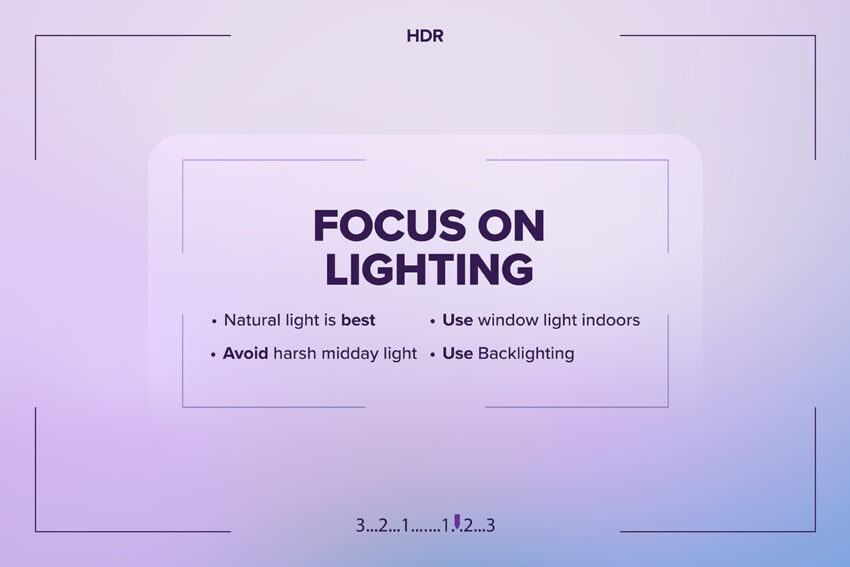
Tip #2: Focus on Lighting
Lighting is extremely important when it comes to taking photos because it determines the mood, tone and atmosphere. By controlling the light, you can stylize your photos like the pros do.
- Natural light is best: Morning and late afternoon (“golden hour”) create soft, flattering light for your photos
- Avoid harsh midday light: If unavoidable, move to shaded areas or diffuse light with something translucent
- Use window light indoors: Position subjects near windows for soft, directional lighting
- Backlighting tricks: Use it creatively for silhouettes or dramatic effects
“TIP”
Turn off your flash, it's often too harsh and flattens the image. Not to mention it forces your subject to close their eyes in shock.
Tip #3: Use the Rule of Thirds and Composition Tricks
The rule of thirds is when you frame your subject in the left or right third of an image, leaving the other two thirds more open. When done correctly, it balances the main subject with negative space and helps draw the viewer’s eye.
- Rule of Thirds: Enable gridlines in your camera settings and place subjects along the lines or intersections
- Leading lines: Use roads, fences, or shadows to draw the viewer’s eye toward your subject
- Symmetry and patterns: Capture balance or repetition for visually pleasing shots.
- Depth: Include foreground, middle ground, and background to create a three-dimensional feel
- Angles: Experiment with shooting from low or high perspectives for more dynamic photos
“TIP”
Leave some breathing room—don’t always center your subject.
Tip #4: Keep Your Lens Clean and Steady
When your lens is clean, your image will be sharp and clear. Then making sure your lens is steady will keep any unwanted blurring effects out of your photos.
- Clean lens = sharp image: Wipe with a microfiber cloth; fingerprints can blur details
- Stabilize: Use a tripod, a table, or lean your phone against something solid to reduce camera shake
- Use burst mode: Capture multiple shots quickly to increase your chances of a clear, well-timed photo
- Tap to focus and adjust exposure: Tap the subject on-screen and slide your finger up/down to control brightness
“TIP”
Use your phone’s timer or a Bluetooth shutter to prevent camera movement.
Tip #5: Edit Like a Pro on Android
Once you’ve taken your photo, now it’s time to get it to that professional level by adding some final touches to make your picture, picture perfect.
1) Open your photo in Google Photos or Snapseed (both are free and easy to use)
- In Google Photos, tap the photo → hit “Edit” (pencil icon).
- In Snapseed, tap the “+” sign and select your image.
2) Start with the basics:
- Brightness/Exposure: Slide up slightly to make your photo pop, but avoid washing out highlights
- Contrast: Add a touch to make colors and shadows stand out
- Saturation: Boost just enough to enhance colors—too much can make the photo look unnatural
3) Fine-tune the details:
- Sharpen: Make your subject crisper, especially if lighting is low
- Crop & straighten: Adjust your framing or horizon line to improve composition
- Highlights/Shadows: Bring back detail in bright skies or dark areas
4) Apply filters or presets sparingly:
- In Snapseed, try the “Portrait” or “Fine Art” filters, then lower the intensity.
- In Lightroom Mobile, use subtle presets that enhance rather than overpower your image.
5) Save a copy: Always save edits as a new photo so you can compare before and after.
“TIP”
Keep your edits natural, if someone can tell it’s edited, you’ve probably gone too far.
Practice Makes Your Pictures Perfect
Okay, you now know all the tips to get professional-quality photos out of your Android device. Remember, it’s not just the great technology in your phone’s camera that is doing all the work. It’s you and your eye for detail that really plays a huge part in how amazing your photos are. So, we encourage you to experiment and really explore all the features in your camera settings to develop your own unique style. Then you’ll be sending Ultra-professional photos to friends and family in no time.
Tap the button below to learn more about Ultra Mobile.