How to transfer data from Android to iPhone
By Ultra Team
Published August 15, 2025
Switching phones from one device to another can feel stressful, especially if you’re moving from one type of software to another, like from Android to iPhone. We use our devices so much in our daily lives that most of us have precious data on our devices, such as photos and videos of our loved ones – things you definitely don’t want to lose!
So if you’re thinking of switching from Android to iPhone, you might be a bit nervous about the switch. Fortunately, Ultra Mobile is here to help. In this blog, we’ll go over what data can be transferred, and how to safely and securely transfer your data so you have an Ultra-smooth transition to your new or new-to-you iPhone device.
What you can transfer
Before you begin your transfer, it might be helpful to get a sense of what you can and what you cannot transfer.
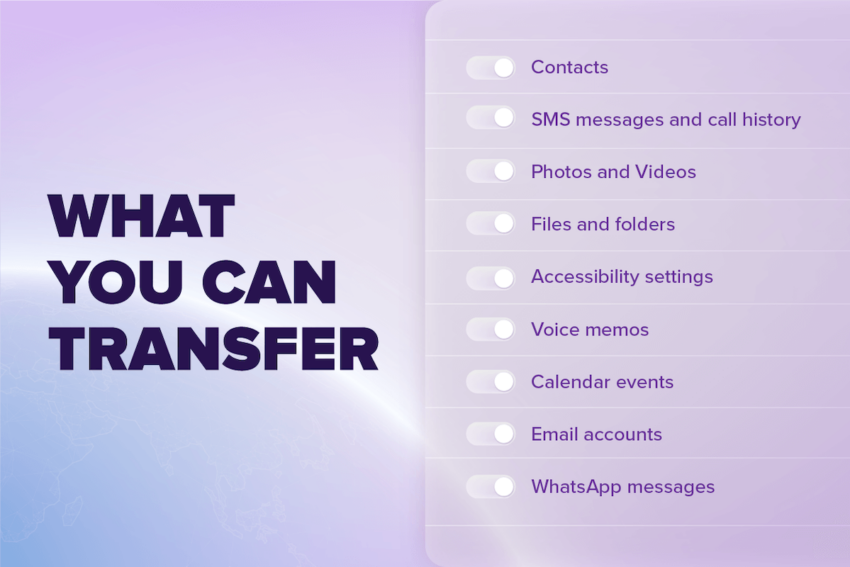
Here’s a list of the most popular types of data to transfer:
- Contacts
- SMS messages and call history
- Photos and Videos
- Files and folders
- Accessibility settings
- Voice memos
- Calendar events
- Email accounts
- WhatsApp messages
If they’re available on both Google Play and the App Store, some of your free apps will transfer.
What you can’t transfer
There is some un-transferrable data that you will have to set up manually on your new device, such as:
Apps & App Data
- Now that you’ve moved to a different operating system, you will not be able to transfer paid apps or Android-exclusive apps and will need to re-download paid apps that are available on the App Store. Similarly, your game progress, settings and login history won’t transfer unless it’s synced to the cloud.
Text Messages from Third Party Apps
- Messages from apps such as Facebook Messenger or Signal won’t carry over.
Home Screen Layout & Widgets
- You’ll need to set up your iPhone layout manually. Now’s the perfect time to refresh that home screen photo.
System Settings
- System settings like Wi-Fi passwords, alarms, accessibility settings, and so on, won’t transfer and need to be manually set up.
Switching from Android to iPhone
Okay, now that you have a basic understanding of what data is transferable, let’s get into the actual process of transferring your device data from Android to iPhone.

What to prepare for before Switching
- Before you start your transfer, make sure that Wi-Fi is turned on your Android device and plug your new iOS device and Android device to a power source.
- Download the Move to iOS app on your Android device
- For a faster transfer, you can use a USB-C cable to directly connect your Android device and your iPhone.
- Before you begin your transfer, make sure that the content you’re moving, including your external Micro SD card will fit on your new iPhone.
- If you want to transfer your Chrome bookmarks, update to the latest version of Chrome on your Android device.

“Tip”
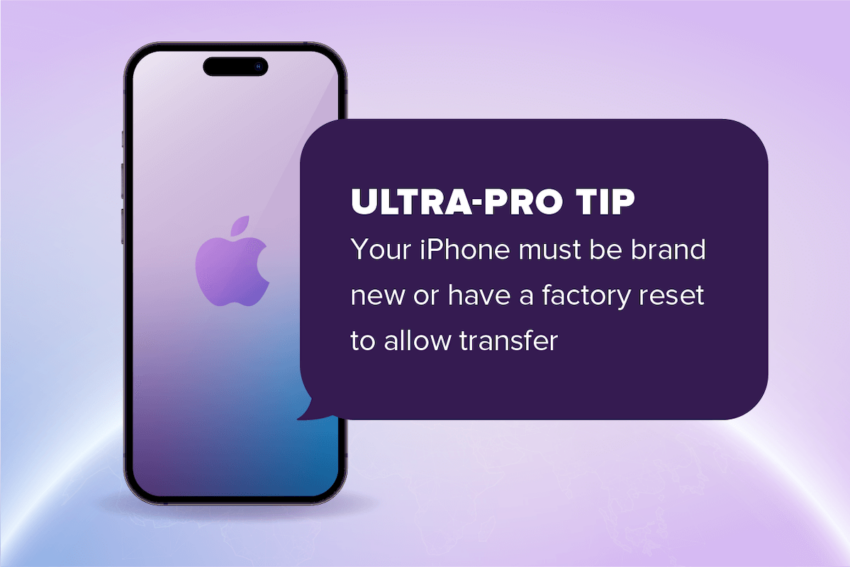
It’s best to complete the transfer before you set up your new iPhone. If you already set up your new iPhone you’ll need to erase it and start over. If you’ve already set up your iPhone and don’t want to erase it, you’ll have to move your content over manually.
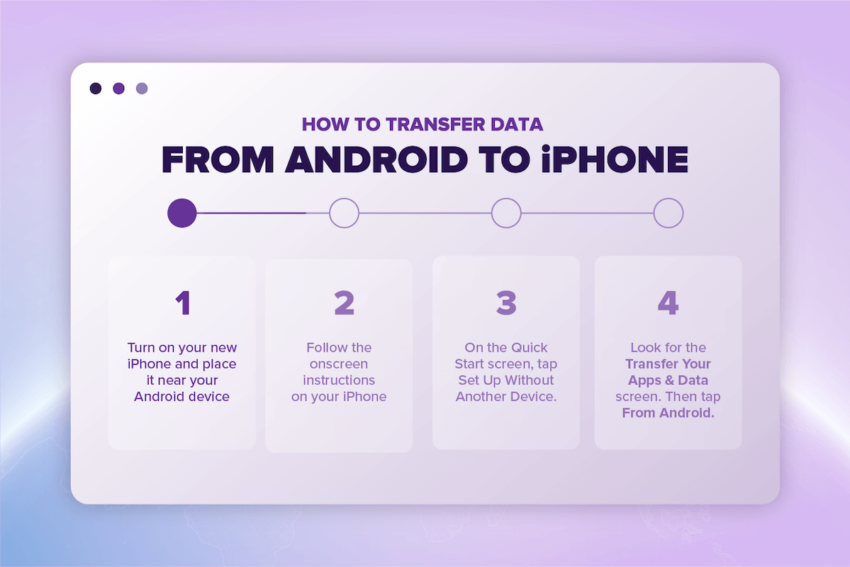
How to transfer data from Android to iPhone
Okay, now let’s get into what you’ll need to do to initiate the transfer and how it works.
- Turn on your new iPhone and place it near your Android device
- Follow the onscreen instructions on your iPhone
- On the Quick Start screen, tap Set Up Without Another Device (since you’re not setting up from another iPhone).
- Look for the Transfer Your Apps & Data screen. Then tap From Android.
At this point, if you’ve already set up your iPhone, you’ll need to erase your iOS device and start over. If you don’t want to erase, just transfer your content manually.
Next, on your Android device open the Move to iOS app.
If you don’t have the Move to iOS app, you can tap the QR code button on your new iOS device and scan the QR code using the camera on your Android device to open the Google Play store.
To start using the Move to iOS app, do the following:
- Tap Continue
- Read the terms and conditions that appear, and tap Agree to continue
- Tap Continue and enable Location permissions if necessary
- Tap Continue and enable Notification permissions if necessary
Wait for a code and enter it onto your Android device
- On your iPhone, tap Continue when you see the Move from Android screen. Then wait for a ten-digit or six-digit code to appear.
- When the code populates, enter the code on your Android device
Next, connect to a temporary Wi-Fi network.
- Your iPhone will create a temporary Wi-Fi network.
- When asked, tap Connect to join that network on your Android device.
- Then wait for the Transfer Data screen to appear.
Choose your content and wait for the transfer to complete.
- From your Android device, select the content that you want to transfer and tap Continue.
- Keep the devices near each other and plugged in to power until the transfer is completely finished.
- Even if your Android device shows that the process is complete, leave both devices alone until the loading bar on iPhone is completed.
- If it’s a large transfer, this can take a while, depending on how much content you’re moving.
- After the loading bar completes on your new iPhone, signalling that the transfer is complete, you can tap Done on your Android device.
- Continue following the onscreen steps to finish setup for your iPhone.
Make sure that all of your content is transferred. FYI: things like music, books and pdfs need to be moved manually.
Transferring Apps and App Data
- You may get a prompt that says Add Your Android Device Apps from the App Store?
- Tap Add Apps to get all your free apps downloaded onto your new iPhone such as What’sApp.
- Note: you may still need to re-download some apps manually.
- Paid apps may not transfer, so you may need to purchase those apps in the App Store.
- Some apps may require you to re-download and manually transfer such as content from the Notes app. Additionally, some content may need to be exported to be accessible on your new iPhone such as previous WhatsApp messages, and similar data.
Enjoy your new iPhone
And that’s it. Welcome to the blue bubble side!
We hope this helpful guide makes it easy for you to switch over to iPhone and enjoy all that your new device has to offer. We know that switching devices can feel like a big leap but thanks to modern technology, it’s never been easier to move all your digital data to a new cell phone.
While you’re considering making the switch to a new phone, now might be the perfect time to switch up your wireless plan, too. Ultra Mobile makes it easy to stay connected with plans as low as $10/month. Switching and saving is easy, whether you’re on iPhone or Android.
What have you got to lose? Once you know what makes Ultra Mobile so great, you’ll be wondering why not Ultra? Click the button below to find out more.