How to transfer data from iPhone to Android
By Ultra Team
Published August 21, 2025
Switching your phone device can feel stressful and maybe even a little bit scary. We use our devices so much in our daily lives that most of us have precious data on our devices, such as photos and videos of our loved ones – things you definitely don’t want to lose!
If you’re thinking of transferring data from iPhone to Android, Ultra Mobile is here to help. In this blog, we’ll go over what data can be transferred, and how to safely and securely transfer your data so you have an Ultra-smooth transition to your new or new-to-you Android device.
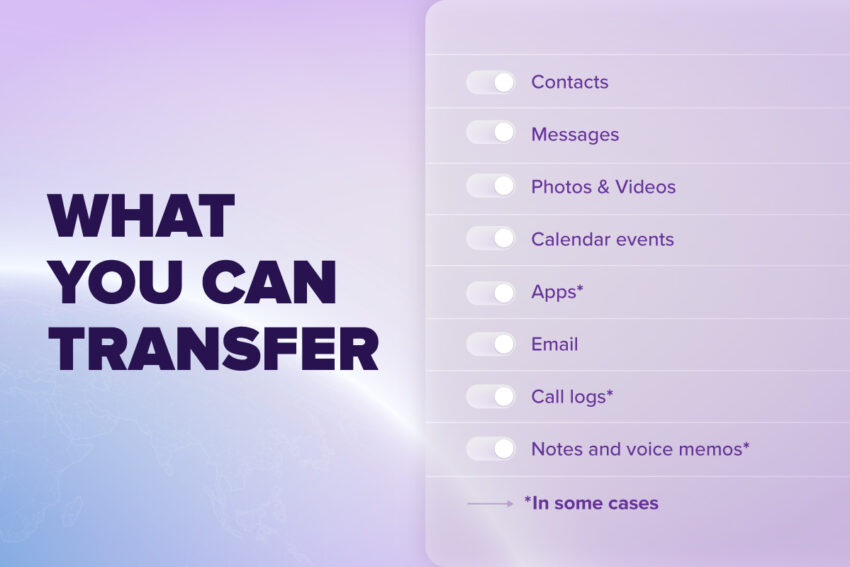
What you can transfer
Before you begin your transfer, it might be helpful to know what you can and what you cannot transfer.
Here’s a list of the most popular types of data to transfer:
- Contacts
- Messages
- Photos and Videos
- Calendar events
- Apps (though not all apps or app data is transferable). You may need to redownload some apps and app data.
- Email accounts
- Call logs in some cases
- Notes and voice memos in some cases

“Note”
It’s important to note that not all data will transfer automatically. You may need to sign into some of your existing apps to see your data on the new device.
What you cannot transfer
There is some un-transferrable data that you will have to set up manually on your new device, such as:
Apps & App Data
- Now that you’ve moved to a different operating system, you will not be able to transfer paid apps or iPhone-exclusive apps and will need to re-download paid apps on Google Play. Similarly, your game progress, settings and login history won’t transfer unless it’s synced to the cloud.
Text Messages from Third-Party Apps
- Messages from apps such as Facebook Messenger or Signal won’t carry over.
Home Screen Layout & Widgets
- You’ll need to set up your Android layout manually. Now’s the perfect time to refresh that homescreen photo.
System Settings
- System settings like Wi-Fi passwords, alarms, accessibility settings, and so on, won’t transfer and need to be manually set up.
Next, we’ll go into some Ultra-helpful tips and trips for transferring.
Switching from iPhone to Android
Okay, now that you have a basic understanding of what data is transferable, let’s get into the actual process of transferring your device data from iPhone to Android.
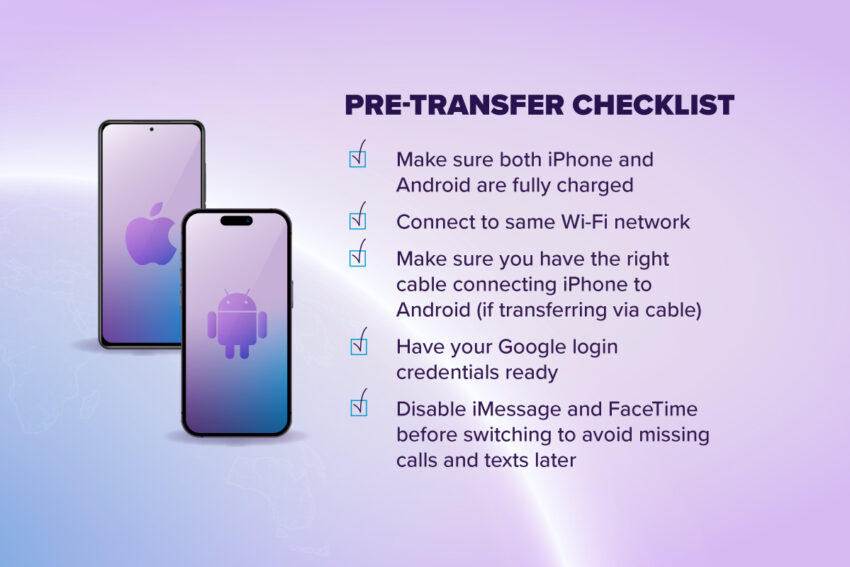
What to prepare before Switching
Before you start your transfer, make sure both your iPhone and Android device are fully charged and connected to the same Wi-Fi network. For the smoothest transfer we recommend using a secure and stable Wi-Fi connection. This will also help the transfer go by quicker especially if you’re transferring wirelessly.
Next, take advantage of Google’s smart and helpful “Switch to Android” app that’s perfect for transferring and for new Android users.
Transferring via Cable or Wi-Fi
If you want to transfer as much of your data as possible, Google recommends transferring using a cable (if possible). However, you’ll also be able to transfer wirelessly and our instructions below cover both forms of transfer. If you do want to use a cable, make sure you have the right cable with the correct connectors for both your current iPhone and new Android device.

What happens during the transfer
Okay, now let’s get into what you’ll need to do to initiate the transfer and how it works.
- To start the transfer, turn on your new Android and press Start (make sure it’s fully charged before getting started).
- Then, connect to a Wi-Fi network.
- Next, choose to Copy apps & data to initiate the transfer.
Continue with the setup process until you’re prompted to set up your cable. If you don’t have a cable or don’t plan on using one, just select ‘No cable’. to proceed without a hardwire transfer.
- You may get prompted to share location and get access to nearby devices. Enable or allow those prompts for a wireless transfer.
- Then, sign into your Google credentials.
- Next up, you’ll be prompted with a QR code on your Android phone. Use your iPhone’s camera to scan the QR code and download the Switch to Android app in the App Store and open it. Agree to the terms of service and press Copy data.
“Tip”
You can transfer your data from an iPad to Android following the same instructions.
- With the Switch to Android app open on your iPhone, scan the QR code and allow both phones to connect by tapping Join. You will then need to allow the app to access your data to prepare for your data transfer.
- Next, select the data you want to transfer by toggling over the data sources you’d like to be copied onto your new Android phone.
- To begin the transfer, tap Continue. Keep both phones close together during your transfer.
“Tip”
The app will move your data to your Google account (such as your photos from iPhotos to Google Photos, Google Contacts, and so on).
- You may have photos and videos in iCloud. Since iCloud data does not copy over to Android, you will need to request your data from your iCloud account. The Switch to Android app will provide instructions on how to request this additional data and access it on your new Android device.
- The typical transfer takes between 15 and 45 minutes, depending on how much data you are transferring.
Once your data has been transferred over, disable iMessage on your iPhone settings by navigating to Settings > Messages and toggle iMessage to Off in order to avoid text delivery issues
Transferring Apps and App Data
You will likely need to re-download apps manually. And unfortunately paid apps may not transfer because Google Play is a different location than the App Store, so you may need to re-purchase some apps.
Some apps may require manual back-up steps in order to restore your data. As we said above, iCloud data does not copy over to Android and therefore Notes app and Safari bookmarks may not transfer unless exported or synced to a Google service first.
Welcome to the Android life
And that’s it. Welcome to the Android side!
We hope this helpful guide makes it easy for you to switch over to Android and enjoy all that your new device has to offer. We know that switching devices can feel like a big leap but thanks to modern technology, it’s never been easier to move all your digital data to a new cell phone.
While you’re considering making the switch to a new phone, now might be the perfect time to switch up your wireless plan too. Ultra Mobile makes it easy to stay connected with plans as low as $10/month. Switching and saving is easy, whether you’re on iPhone or Android.
What have you got to lose? Once you know what makes Ultra Mobile so great, you’ll be wondering why not Ultra? Click the button below to find out more.