How to use Wi-Fi Calling
By Ultra Team
Published June 24, 2026
Wi-Fi Calling is a feature available on most smartphones nowadays that is pretty much exactly what it sounds like: making phone calls over Wi-Fi. This can really come in handy if you find yourself in a place with poor cellular signal but a stable Wi-Fi network, or if you’re traveling outside your usual carrier’s network. This guide will walk you through enabling Wi-Fi Calling on your specific device in just a few steps, as well as how to use Wi-Fi Calling and what you can expect from it going forward.
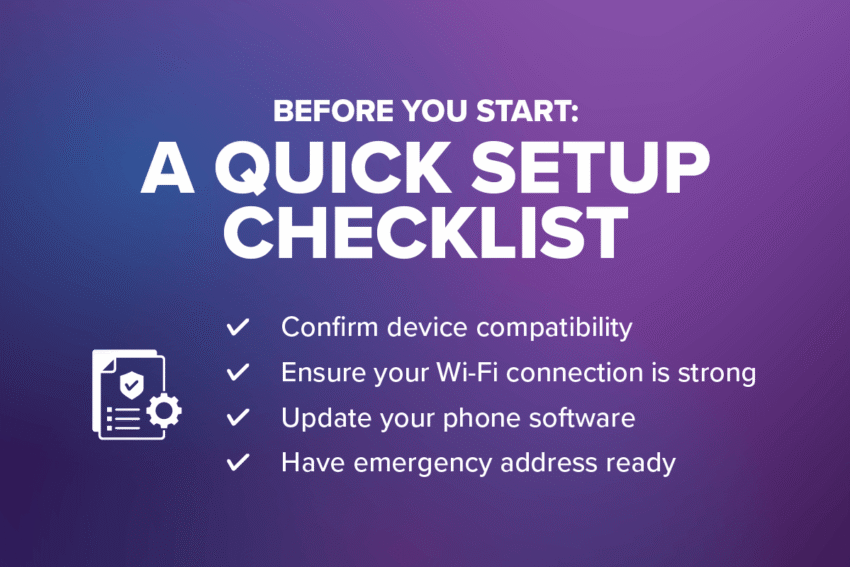
Before You Start: A Quick Setup Checklist
- Confirm device compatibility
- Check your phone’s settings to make sure Wi-Fi Calling is an available feature. Most smartphones purchased in the last few years should support it.
- Ensure your Wi-Fi connection is strong
- Make sure you’re near a router that is providing a quality internet connection.
- Update your phone software
- Ensure your phone’s software is up to date by checking this in the settings as well.
- Have emergency address ready
- Wi-Fi Calling requires you to provide your address in case you need to make an emergency call while connected to Wi-Fi.
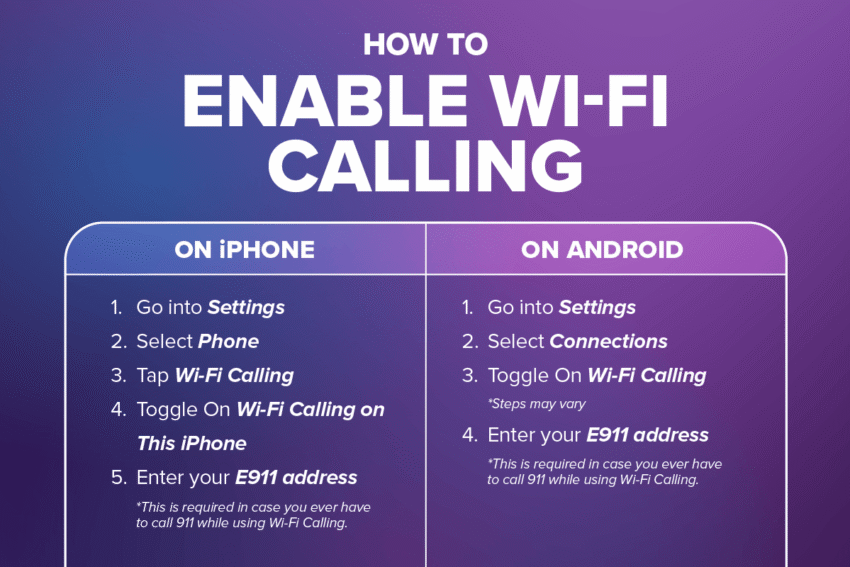
How to Enable Wi-Fi Calling
How to enable Wi-Fi Calling on iPhone
- Go into Settings
- Select Phone
- Tap Wi-Fi Calling
- Toggle the switch next to Wi-Fi Calling on This iPhone on
- Enter your E911 address
- This is required in case you ever have to call 911 while using Wi-Fi Calling.
How to enable Wi-Fi Calling on Android
- Go into Settings
- Select Connections
- Toggle the switch next to Wi-Fi Calling on
- These steps may vary slightly depending on your Android phone make & model. You should refer to your user manual for more information.
- Enter your E911 address
- This is required in case you ever have to call 911 while using Wi-Fi Calling.
What Happens After Wi-Fi Calling is Enabled
Once you’ve turned on Wi-Fi Calling, your phone will automatically decide whether to complete calls over cellular or Wi-Fi depending on the signal quality. You shouldn’t have to do anything manually.
When your phone is making calls over Wi-Fi, your phone will display something like:
- “Wi-Fi Calling”
- “Wi-Fi Call”
- Your carrier name + a Wi-Fi icon
How Calls Actually Travel
Phone calls don’t just go from one phone to another, they go through your carrier network. Here are the general paths phone calls take, depending on your network connection:
Traditional Call
Phone → Cell Tower → Carrier Network → Recipient
Wi-Fi Call
Phone → Wi-Fi Router → Internet → Carrier Network → Recipient
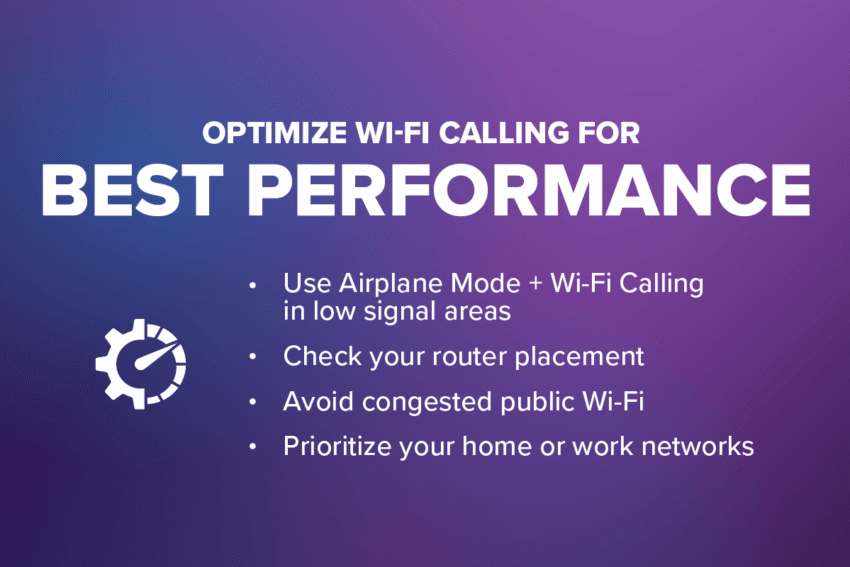
Optimize Wi-Fi Calling for Best Performance
There are some tricks you can use to make the most of Wi-Fi Calling when it’s enabled.
- Use Airplane Mode + Wi-Fi Calling in low signal areas
- To avoid accidental roaming or potential dropped calls when your phone hops between another carrier’s tower and a Wi-Fi network, enable Airplane Mode so it will only make calls over Wi-Fi.
- Check your router placement
- Make sure your router is in the best place for the strongest network connection, not behind furniture or hidden in a closet.
- Avoid congested public Wi-Fi
- When at a busy public location, the Wi-Fi may be bogged down and unstable. Plus, using open public Wi-Fi can be risky for phone security.
- Prioritize your home or work networks
- Set your phone to only use trusted Wi-Fi networks when available.
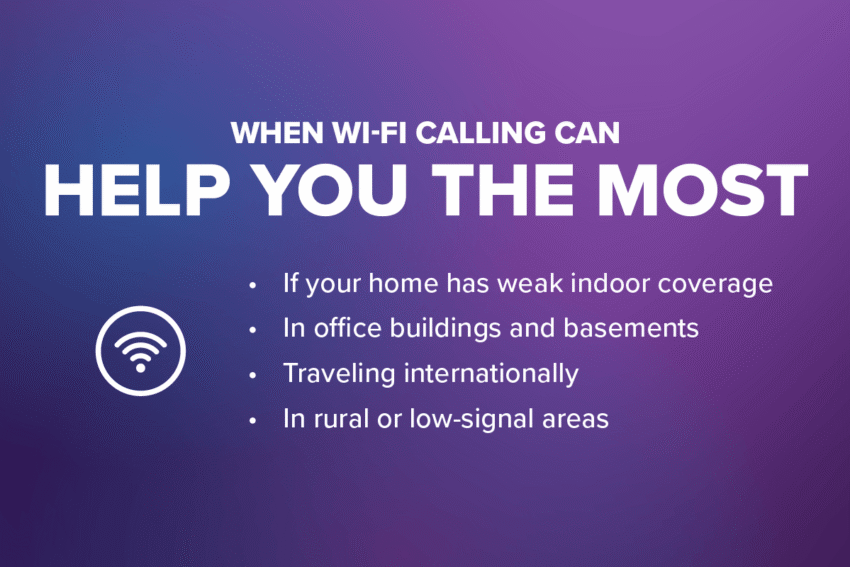
When Wi-Fi Calling Can Help You the Most
So when should you use Wi-Fi Calling? There are a few different use cases when it makes the most sense.
- If your home has weak indoor coverage
- If you can’t get cellular signal around your home, Wi-Fi Calling is essentially like having a tower where you live.
- In office buildings and basements
- Similar to not getting signal at home, Wi-Fi Calling is great if you’re in another building that doesn’t allow for good cell signal but has strong Wi-Fi.
- Traveling internationally
- When you connect to a cell tower in another country, you risk incurring roaming fees, but calls over Wi-Fi don’t borrow another network’s towers.
- In rural or low-signal areas
- If you find yourself on a road trip or visiting a less-populated area where your carrier doesn’t have coverage, Wi-Fi Calling is a great backup.
And That’s the What, Where and When of Wi-Fi Calling
Now you know that not only is Wi-Fi Calling incredibly simple to set up on your phone, but also a highly valuable feature that can help you stay connected where you need it most. Whether you’re trying it in a low-signal neighborhood, in your home office or while traveling abroad, Wi-Fi Calling is an incredibly helpful tool that offers an immediate benefit when used correctly. Learn more about Wi-Fi Calling and what to do if it ever gives you trouble at the link below.