Cómo compartir la contraseña de Wi-Fi en Android
Por el equipo Ultra
Published marzo 13, 2026
We’ve all been there before. You invite friends over for dinner, and before they even take off their coats, someone asks for the Wi-Fi. You are then forced to dig behind the couch, blow the dust off your router and read a chaotic string of uppercase letters and random numbers. Someone types an “O” instead of a zero, and you have to start the whole tedious process over again.
Sharing your Wi-Fi shouldn’t require typing long passwords or navigating awkward miscommunications. Thankfully,with built-in tools, Android makes connecting your guests simple. There are no sketchy third-party apps required, and the entire process takes just a few seconds. Whether you are setting up a new tablet for yourself, getting a family member online, or sharing your network with a houseguest, these native Android methods are secure and fast. Best of all, they ensure you can grant network access with absolutely no password exposure.
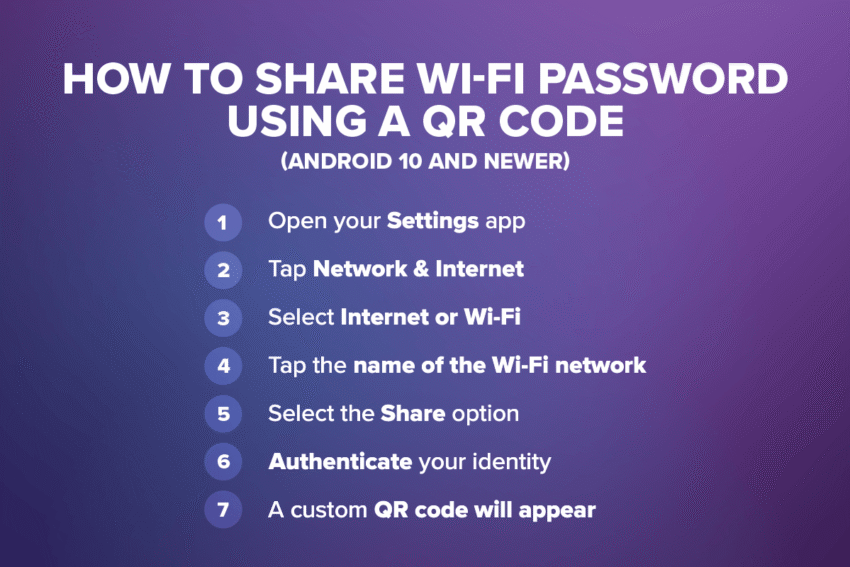
How to Share Wi-Fi Password Using a QR Code (Android 10 and newer)
Android makes sharing your Wi-Fi password incredibly simple with a built-in QR code feature. Instead of typing a long password, you can generate a scannable code in seconds. This method works on most Android devices running Android 10 or newer.
Here’s exactly how to find and share your QR code:
- Abre tu Ajustes app from the main app drawer or by swiping down from the top of your screen to access the quick settings panel
- Grifo Red e Internet to view your current connection status
- Seleccionar Internet or Wi-Fi depending on how your specific device menu is labeled
- Toque el name of the Wi-Fi network you are currently connected to
- Seleccione el Compartir option with the small QR code icon above it
- Authenticate your identity using your device PIN, fingerprint, or face unlock
- A custom QR code will appear right on your screen for others to scan
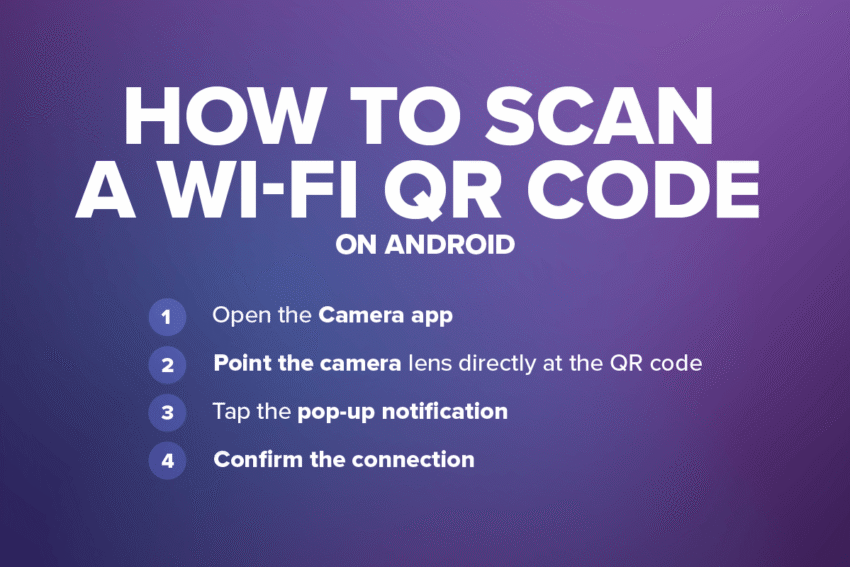
How to Scan a Wi-Fi QR Code on Android
Now that you have the QR code glowing on your screen, your friend needs to scan it. This part is just as easy and takes the friction completely out of the connection process.
Follow these steps to scan the code and get online:
- Abrir el default Camera app on the phone that needs a network connection
- Point the camera lens directly at the QR code
- Tap the pop-up notification that appears on the screen linking to the network
- Confirm the connection if the phone asks for final permission
Sometimes, older phones or specific camera apps do not automatically detect QR codes. If the default camera method doesn’t work right away, you can use the Google Lens feature built into most Android phones. You can also swipe down to the quick settings panel and tap the dedicated QR scanner tile. It’s also worth noting that this method works cross-platform, meaning if your friend has an iPhone, they can still point their camera at your Android screen, scan the code, and join your network in a flash.
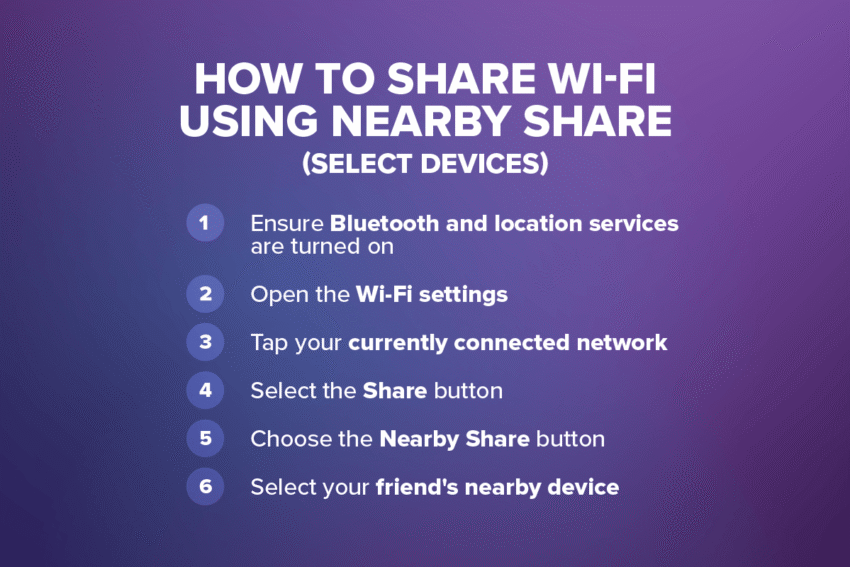
How to Share Wi-Fi Using Nearby Share (Select Devices)
Scanning a QR code is great, but it does require you to physically hold your phone out for someone else to scan. If you’re sitting across the room and scanning just isn’t convenient, Android has another neat trick up its sleeve. You can use Nearby Share to wirelessly beam your network details directly to another device.
Here’s how to share your Wi-Fi connection using Nearby Share:
- Ensure Bluetooth and location services are turned on for both devices
- Abrir el Wi-Fi settings on the host phone
- Tap your currently connected network to open the details page
- Seleccione el Share button to bring up the QR code
- Choose the Nearby Share button located right below the QR code image
- Select your friend’s nearby device from the pop-up list
This method feels a bit like magic, but it requires compatible Android devices, and again, both users must have Nearby Share enabled in their settings.
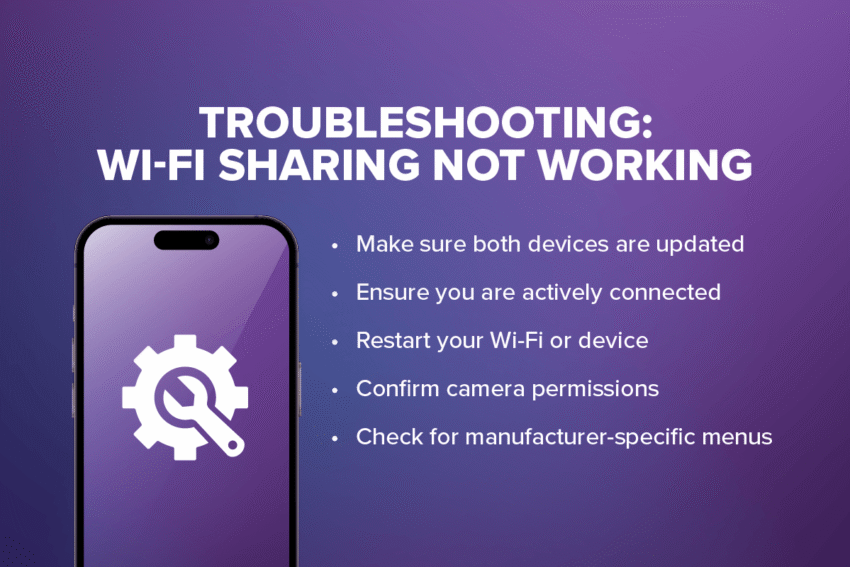
Troubleshooting: Wi-Fi Sharing Not Working
If Wi-Fi sharing doesn’t work on the very first try, there’s no need to worry. You can run through a few quick troubleshooting steps to get everything functioning smoothly.
- Make sure both devices are updated: Older operating systems might lack the necessary features to read modern QR codes or utilize Nearby Share.
- Ensure you are actively connected: You will want to verify you are on the network you are trying to share. Your phone cannot share a connection it doesn’t currently have.
- Restart your Wi-Fi or device: If you are still stuck, try rebooting the device entirely to clear out any temporary software glitches.
- Confirm camera permissions: If your guest is having trouble scanning the QR code, double-check that their camera app has the proper permissions enabled to read codes.
- Check for manufacturer-specific menus: Settings menus can look a bit different depending on whether you are using a Samsung, a Pixel or another brand. Sometimes the share button is tucked away under an advanced settings tab.
Conectado en casa, conectado en todas partes
Android makes password sharing simple and incredibly secure. Generating QR codes completely eliminates the risk of typing errors, and relying on built-in tools means you don’t have to clutter your phone with extra apps. It’s the perfect, stress-free way to connect guests, new phones, tablets and all your smart home devices. Getting online quickly is just one more way Android simplifies everyday tech.
Paired with free 5G on the T-Mobile Network, America’s Best Network, your Android device and Ultra Mobile are always the right answer. Check out our flexible plan options starting at just $15/mo with free talk and text to 90+ international destinations to start saving on wireless today.