Cómo evitar que las aplicaciones se ejecuten en segundo plano
Por el equipo Ultra
Published febrero 27, 2026
Have you noticed your phone powering down quicker than usual? The quiet culprit might be apps running in the background. They’re syncing and refreshing data, all while draining your battery when you’re not looking. Luckily, you don’t have to be a tech wizard to disable it. Let’s find out how you can free up your phone for things you actually need it to do.
What does “Running in the Background” mean?
When you swipe away an app, it feels like you’re closing it. But that doesn’t mean it’s done working. Many apps continue to run in the background for lots of reasons, like: refreshing content, syncing data, tracking locations, and sending notifications. Later, we’ll go over all the ways to disable these background activities.
Your phone allows this because background activities make apps more convenient. Messages are received instantly, directions are updated live and photos are backed up automatically – to name a few reasons. The tradeoff for this convenience is battery life, and too many apps running in the background means faster battery drain and more data use.
Why you should limit background apps
Background activities have a noticeable impact. Left unchecked, they can result in some serious hits to your phone’s overall performance. From annoying issues like quick battery drain, sluggish interface and frequent charging, to more serious problems like high mobile data usage and shortened overall lifespan, letting your phone work overtime puts too much strain on its systems – for apps you might not even be using.

How to Stop Background Apps on iPhone
If you’re an iPhone user, there are several ways how to close background apps:
- Turn off Background App Refresh
- Ir a Ajustes → General → Background App Refresh
- Elegir Apagado to stop all background refreshing
O
- Keep it on and only toggle off apps that you don’t need to constantly update

“Ultra-punta”
Social media and shopping apps are safe to disable here
- Limit Location-Based Background Activity
Some apps track your location even when you’re not using them. Here’s how you can limit tracking:
- Ir a Settings → Privacy & Security → Location Services
- Select the app you want untracked
- Change access to While Using the App instead of Always
- Use Low Power Mode Strategically
Lower Power Mode automatically limits background activity. Here’s how to enable it:
- Ir a Settings → Battery
- Check Battery Usage to Spot the Real Offenders
Bajo Settings → Battery, you’ll see which apps are using the most power. If something stands out as surprising, like a social media app you hardly use, hogging the battery, go to General → Background App Refresh to stop the background activity.
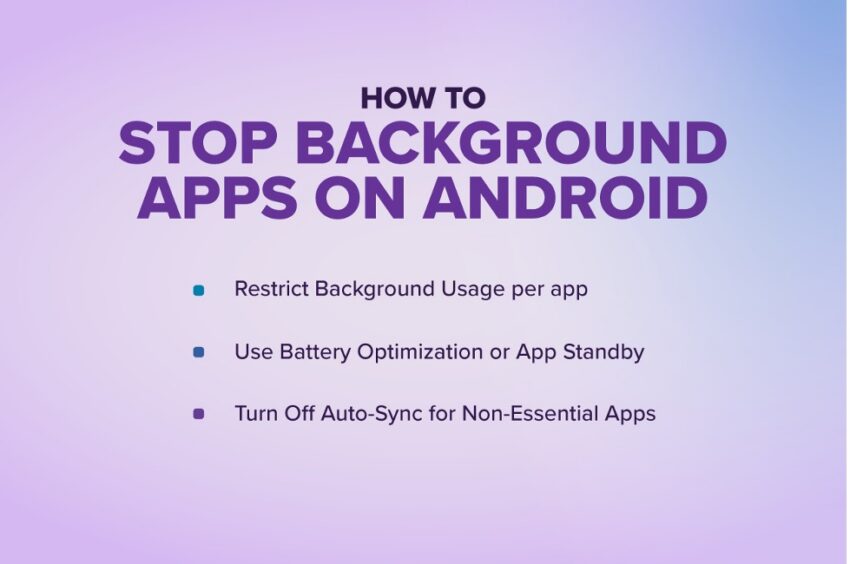
How to Stop Background Apps on Android
Android offers even more controls for background activities. You just need to know where to look:
1. Restrict Background Usage Per App
- Ir a Settings → Apps
- Select an app
- Grifo Batería
- Elegir Restricted o Optimized
2. Use Battery Optimization or App Standby
Most Android phones automatically limit background apps you don’t use often. But you can always confirm under Battery settings.
Disable Background Data for Specific Apps
If an app doesn’t need data when you’re not using it, here’s what to do:
- Ir a Settings → Apps → Data Usage
- Turn off Background Data
3. Turn Off Auto-Sync for Non-Essential Apps
Email, calendars and cloud services are auto-syncing constantly. But these are apps that most people rely on for vital communications. Disabling syncs for apps you don’t regularly use can significantly reduce background activity to just these core apps.
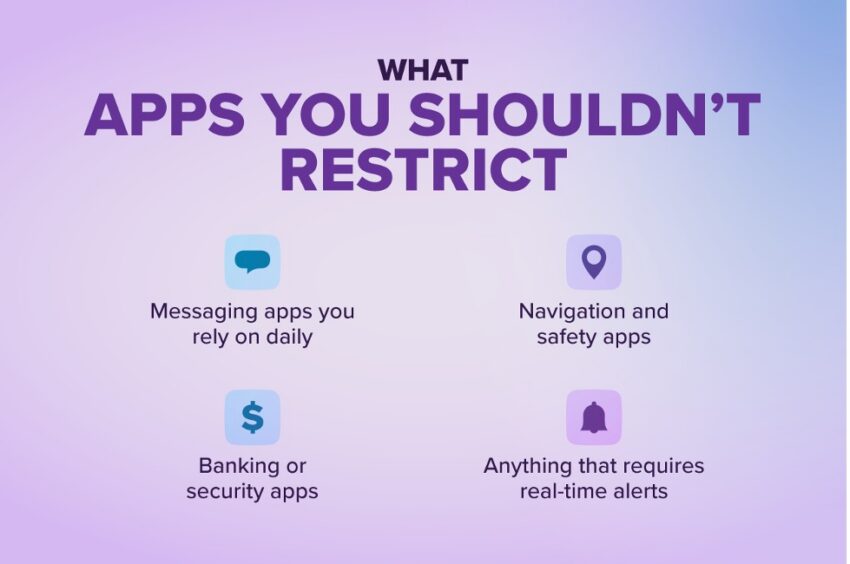
What Apps You Shouldn’t Restrict
Not all apps running in the background are bad. The goal is to only disable what you don’t actually need! Some need to run constantly in order to be useful. Be sure to keep background access for the following apps:
- Messaging apps you rely on daily, like email
- Navigation and safety apps
- Banking or security apps
- Anything else that requires real-time alerts you care about
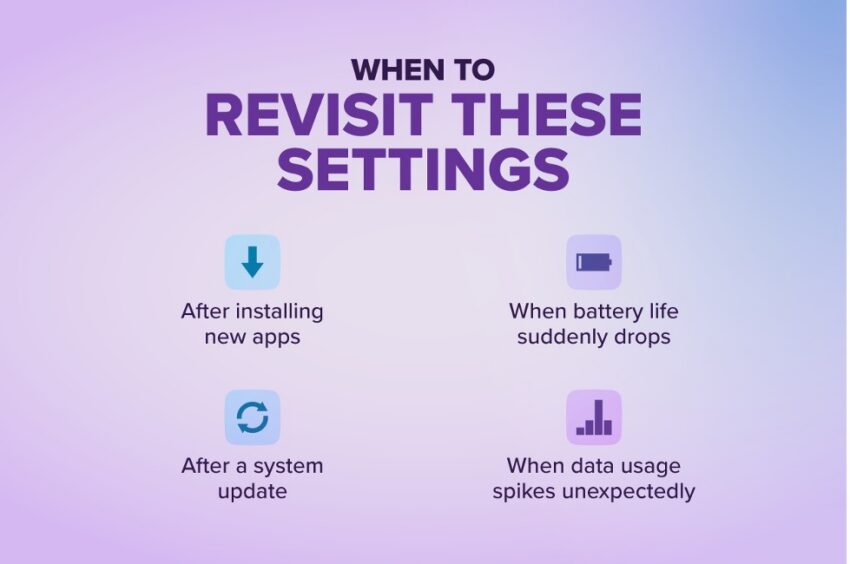
When To Revisit These Settings
Background activity can creep up on you! Here’s when we recommended checking in on your settings:
- After installing new apps
- When battery life suddenly drops
- After a system update
- When data usage spikes unexpectedly
Small Tweaks, Ultra-Payoff
When it comes to their phones, most people never check under the hood. But just like any good maintenance, your device will last longer with regular upkeep. By stopping unnecessary apps from overworking your phone, your battery will hold up better, your data will go where you want it to and you stay in control. Your phone should work for you, not quietly against you.
And if you’re looking to get even more out of your phone, a smarter wireless plan can make all the difference. At Ultra Mobile, getting more value doesn’t mean making more sacrifices. Discover how much you can save with an Ultra Mobile plan on America’s Best 5G Network.